Fix BeautifulSoup AttributeError: NoneType Object Has No Attribute get_text
Why find and select_one return None, how to debug the real HTML your script receives and how to write scraping code that survives missing elements.
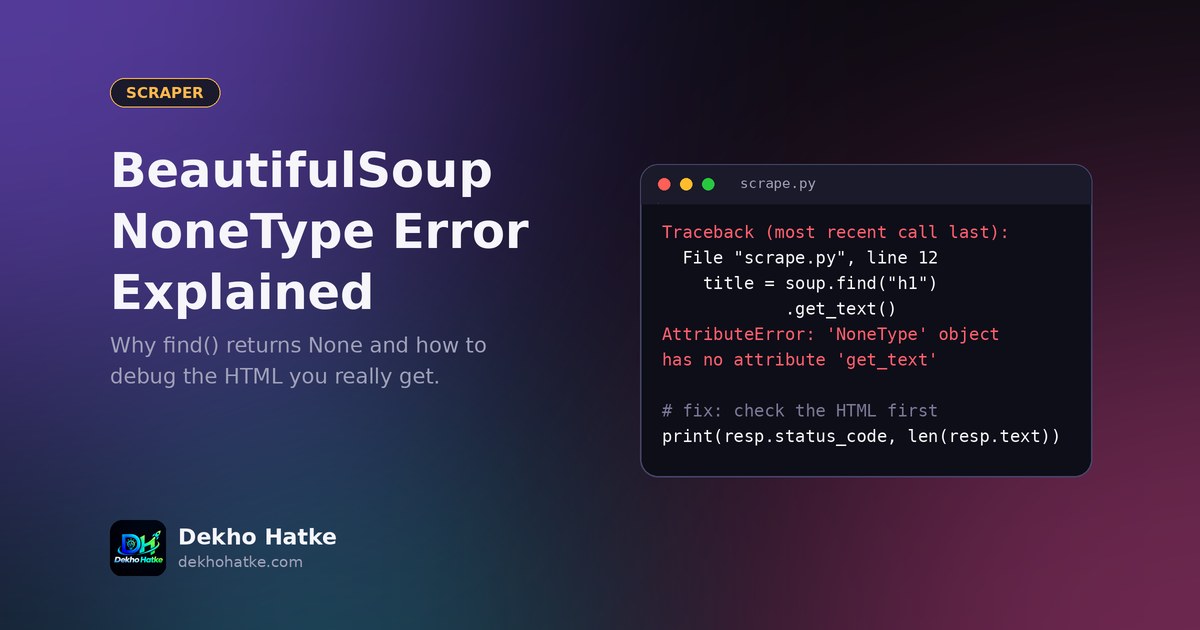
Your scraper worked yesterday. Today it stops with a traceback that ends in AttributeError: 'NoneType' object has no attribute 'get_text'. Or maybe it is the same message with text, find, find_all or get at the end. You look at the page in your browser and the element is clearly there, so the error makes no sense.
This guide explains what the message means, shows the seven real reasons why BeautifulSoup returns None, gives you a five-minute debugging routine that finds the cause every time, and ends with a small set of helper functions that make your scraper survive missing elements instead of crashing. All examples use Python with requests and beautifulsoup4. If you are new to scraping, start with our basic BeautifulSoup tutorial and come back here when something breaks.
What the error actually says
In Python, None is the value that means "nothing". BeautifulSoup's find() and select_one() return None when they cannot find a matching element. Then your next call, for example .get_text(), is applied to None, and Python complains that None has no such attribute. Look at this line:
title = soup.find("h1", class_="product-title").get_text(strip=True)It does two things at once: it searches, and then it reads text from the result. When the search finds nothing, the error appears on the second operation, but the real problem is the first one. So the correct question is never "why does get_text fail?". It is "why did my search find nothing?".
Two related facts help you read tracebacks quickly:
find()andselect_one()return one element orNone.find_all()andselect()return a list, and the list is empty (notNone) when nothing matches. An empty list does not raise an attribute error, it just gives you no data, which can be harder to notice.
Reason 1: The HTML your script receives is not the page you see
This is the most common cause, and the one beginners suspect last. Your browser shows a page after running JavaScript, loading images, accepting cookies and perhaps choosing a language based on your location. Your script receives only the raw response of one HTTP request. They can be very different documents.
Always look at what your script really received. Save it to a file and open that file in an editor:
import requests

url = "https://example.com/products"
headers = {"User-Agent": "Mozilla/5.0 (compatible; MyScraper/1.0)"}
resp = requests.get(url, headers=headers, timeout=15)

print("status:", resp.status_code)
print("final url:", resp.url)
print("length:", len(resp.text))

with open("debug.html", "w", encoding="utf-8") as f:
    f.write(resp.text)
Open debug.html and search it for the text you wanted. If you cannot find it, no selector will ever find it. Use the answer to decide what is going on:
- The file contains a short page saying "Access denied", "Verify you are human" or "Enable JavaScript". The site detected a script and served a challenge page. Slow down, respect the site's rules, and check whether the site offers an official API.
- The file is almost empty, with a few script tags and an empty
<div id="root"></div>. The content is created by JavaScript after the page loads. Read how to find the hidden JSON API behind such pages. - The file contains the data, but in a different place or with different names than the browser's inspector shows. Continue with the next reasons.
Reason 2: You are looking at the rendered DOM, not the source
The browser's Inspect panel shows the DOM after JavaScript changed it. The command View page source shows the original HTML, which is what requests gets. If an element appears in Inspect but not in View source, JavaScript added it. Comparing these two views takes thirty seconds and saves hours.
Reason 3: Wrong class name, ID or tag
Selectors are exact. Small differences make them fail:
class_="price"does not match an element withclass="price-tag".- A class attribute can hold several names, such as
class="item card featured".find(class_="item")works with any one of the names, butfind(class_="item card")requires that exact string and often fails. In CSS selectors, write.item.cardwith no space instead. - Websites change their class names. Many modern sites use generated names like
css-1x2y3zthat change after every release. Such selectors break without warning. Prefer stable hooks:idattributes,data-attributes,itemprop,aria-label, or a clear tag structure. - Case matters in attribute values, and a space inside a CSS selector means "descendant".
Print the candidates and compare:
from bs4 import BeautifulSoup

soup = BeautifulSoup(resp.text, "html.parser")

for el in soup.select("[class*=price]")[:10]:
    print(el.name, el.get("class"), el.get_text(strip=True)[:40])
The selector [class*=price] matches any element whose class contains the word "price", which shows you the real class names present in the received HTML.
Reason 4: The element exists only for some pages
Even when the selector is right, some pages simply do not contain the element. A product may have no discount, no rating or no image. On those pages select_one(".discount") returns None, and the script crashes on the 37th product of a list of 500, which makes the bug look random. This is an ordinary data situation, not an error in the page. Your code must expect it, and the helper functions near the end of this article handle it.
Reason 5: A different parser changes the structure
BeautifulSoup can use several parsers: html.parser (built in), lxml and html5lib. For clean pages they agree. For broken HTML, for example unclosed tags or a <table> without <tbody>, they build different trees. A selector that includes a tbody can work with one parser and fail with another. If your selector works in the browser but not in your script, try BeautifulSoup(html, "lxml") after pip install lxml, and test again. Keep selectors simple, and avoid depending on elements that the browser adds automatically, such as tbody.
Reason 6: Wrong encoding or a truncated response
If the text contains strange characters, or the response ended early, the HTML can be damaged and parts of the page will be missing. Compare resp.status_code with 200, check len(resp.text) against what you expect, and look at resp.encoding. If requests guessed the wrong encoding you can set resp.encoding = resp.apparent_encoding before reading resp.text. A response that is cut off may also come from a timeout or a dropped connection, so use a timeout and retries as described in our requests guide.
Reason 7: You asked for text that lives somewhere else
Sometimes the element is found, and the failure comes from the next step. Three examples:
element.stringreturnsNonewhen the element contains more than one child, for example text mixed with a<span>. Useget_text(strip=True)instead, which joins all the text inside.element["href"]raises aKeyErrorwhen the attribute is missing, whileelement.get("href")returnsNonewithout an exception.soup.find("a", href=True)finds only links that have anhref, which skips anchors used as buttons.
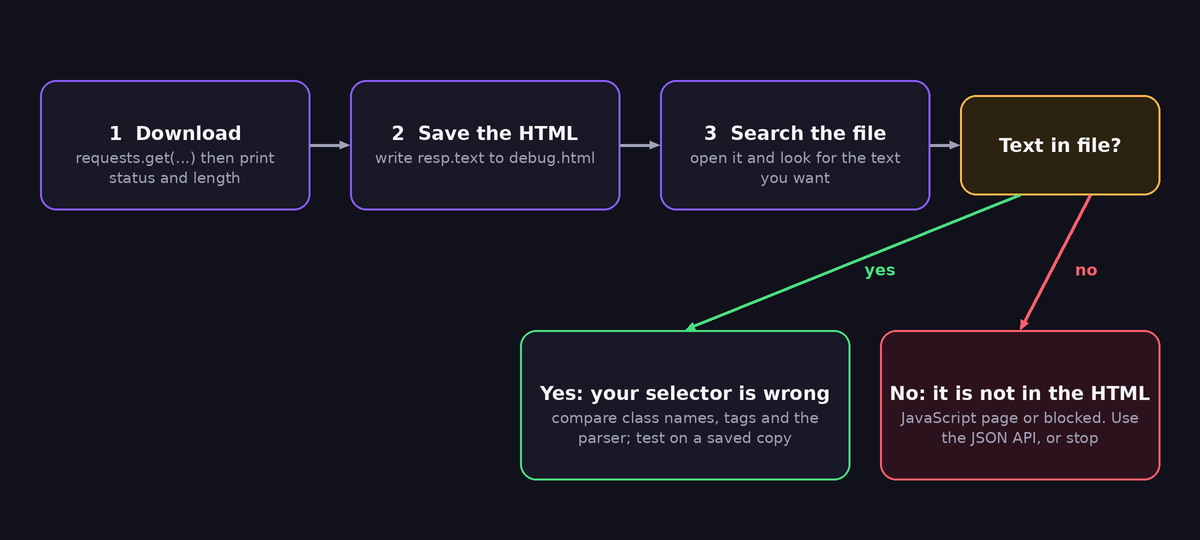
A five-minute debugging routine
Use these steps in order every time a scraper breaks. They go from the cheapest check to the most detailed.
- Print the status code and the final URL. A 403, 404 or 429 means the page is not what you expect, and a redirect to a login page explains a lot.
- Print the length of the HTML and the title:
print(soup.title.string if soup.title else None). A title like "Just a moment" or "Access Denied" tells you immediately. - Save the HTML to a file and search it for a word you expect. If it is absent, stop working on selectors.
- If the word is present, copy a small piece of the HTML around it, and test your selector on that piece in isolation.
- Loosen the selector until it matches, and then tighten it again to the most stable form.
Make your scraper defensive
A scraper that runs unattended should never crash because one product lacks a rating. Wrap the search and the read in small helper functions that return a default instead of raising an exception:
def text_of(parent, selector, default=""):
    el = parent.select_one(selector)
    return el.get_text(strip=True) if el else default

def attr_of(parent, selector, attr, default=""):
    el = parent.select_one(selector)
    return el.get(attr, default) if el else default
Now the loop reads cleanly and cannot fail on a missing element:
rows = []
for card in soup.select(".product"):
    rows.append({
        "name": text_of(card, "h2"),
        "price": text_of(card, ".price"),
        "link": attr_of(card, "a", "href"),
        "image": attr_of(card, "img", "src"),
    })

print(len(rows), "items found")
Silent defaults hide problems, so add a check that tells you when the page structure has changed. If the number of items suddenly drops to zero, or too many names are empty, stop and report instead of saving bad data:
if not rows:
    raise RuntimeError("No products found. The page layout may have changed.")

empty = sum(1 for r in rows if not r["name"])
if empty > len(rows) * 0.3:
    raise RuntimeError(f"{empty} of {len(rows)} rows have no name. Check selectors.")
When the script runs on a schedule, send that error message to yourself in Telegram. Our guide to a Telegram bot that reports to you shows how, so you hear about layout changes the same day they happen.
Handling real layout changes
Websites change. A scraper that depends on one selector will break one day. These habits make repairs quick:
- Keep all selectors in one dictionary at the top of the file, so you edit one place when the site changes.
- Provide fallbacks: try the best selector first, then another one. A helper like
first_of(card, [".price", "[itemprop=price]", ".cost"])can return the first match. - Look for structured data. Many pages include a
<script type="application/ld+json">block with clean product or article data that changes far less often than the visual layout. Read it withjson.loads(tag.string). - Save a sample of the HTML from when the scraper worked. Comparing it with the new HTML shows exactly what changed.
Respect the website while you debug
While you debug, you will request the same page many times. Download it once, save it to disk, and run your parsing experiments on the saved file. This is faster, and it is polite, because repeated requests put load on someone else's server. Read the site's robots.txt and terms of use, do not collect personal data, add a delay between requests, and stop if the site asks you to. If an official API exists, use it instead of scraping.
Frequently asked questions
Is the error caused by BeautifulSoup being broken?
Almost never. The library behaves exactly as documented: no match means None. The cause is nearly always the HTML you received, the selector you wrote, or a page that lacks the element.
Should I use try and except around everything?
A broad try/except hides bugs and gives you empty data without a reason. Prefer the helper functions and explicit checks above, so that missing optional elements are handled on purpose and real structural changes still raise an error.
What is the difference between find and select_one?
find uses tag names and attributes: find("div", class_="price"). select_one uses CSS selectors: select_one("div.price"). Both return the first match or None. CSS selectors are usually shorter for nested structures and match what you copy from the browser tools.
Why does it work for some URLs and fail for others?
Different pages on the same site can use different templates, or some pages may lack the optional element. Test with a failing URL and save its HTML to compare against a working one.
Can I copy the selector from the browser?
Yes. Right-click the element in Inspect, choose Copy, then Copy selector. Treat the result as a starting point and shorten it, because copied selectors are often long and depend on generated classes.
Final thoughts
When BeautifulSoup gives you None, believe it. The element is not in the HTML your script received, or your selector does not describe it. Save the HTML, check the status and title, compare source with inspector, and only then adjust the selector. Add small helpers and sanity checks, and your scraper will tell you clearly when a page changes, instead of failing with a confusing message at three in the morning.