Python CSV Shows Garbage Characters in Excel? Use utf-8-sig
Hindi text, the rupee sign or accented letters turn into odd symbols when a Python CSV opens in Excel. Understand why and fix it with one argument.

You scraped a list of products or customers with Python, saved it as a CSV file, and opened it in Excel. Instead of "café" you see café. Instead of the rupee sign ₹ you see ₹. Hindi names turn into rows of strange symbols and question marks. When you open the same file in Notepad or VS Code, the text looks perfect, so it is natural to ask whether your Python code or Excel is broken.
Neither is broken. The text in the file is correct, but Excel guesses the wrong character encoding when it opens it. The fix is usually a single argument in your Python code. This article explains the cause in simple words, shows the fix for the csv module and for pandas, covers the reverse problem (a stray invisible character at the start of the first column name), and explains related Excel traps such as phone numbers turning into scientific notation and cells that start with an equals sign. It also shows how to write a real Excel file and skip CSV problems completely.
What is actually going wrong
A computer stores text as numbers, and an encoding is the table that says which number means which character. The standard that covers all languages is UTF-8. In UTF-8, a letter like "a" takes one byte, but "é" takes two bytes, "₹" takes three bytes, and a Hindi letter such as "ह" also takes three bytes.
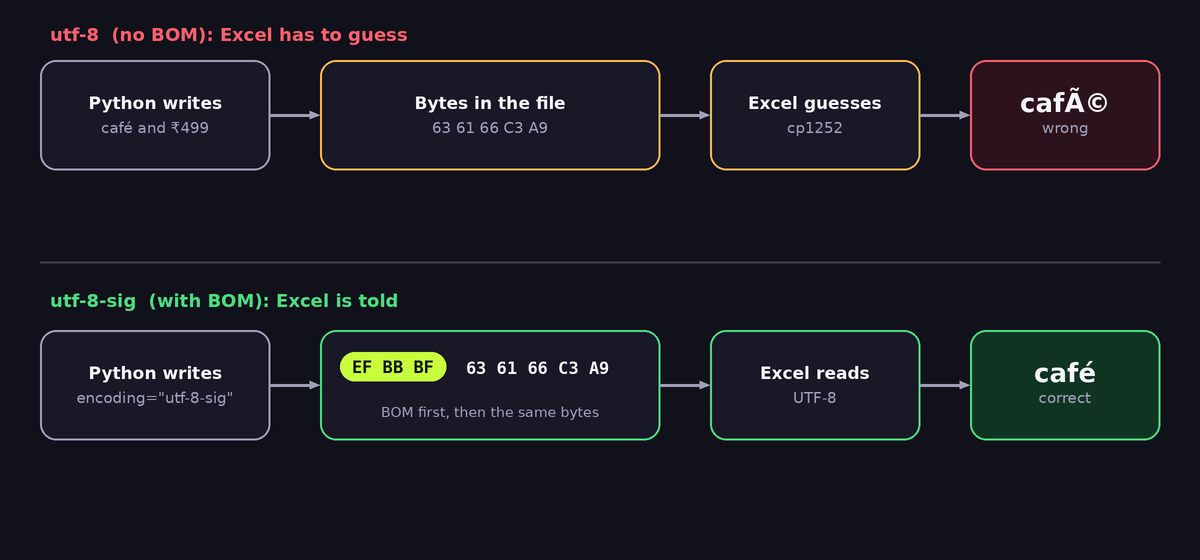
Python writes text files in UTF-8 when you ask for it (and on most systems by default, with exceptions described later). A CSV file has no label inside it that says "I am UTF-8". When Excel on Windows opens a plain .csv by double-clicking, it has to guess, and its guess is usually the old Windows code page for Western European languages, called cp1252. Excel then reads each byte of a multi-byte character as a separate character. You can reproduce what Excel does in two lines of Python:
print("café".encode("utf-8").decode("cp1252"))   # café
print("₹".encode("utf-8").decode("cp1252"))      # ₹
The two bytes of "é" are shown as two characters "Ã" and "©". This wrong display is called mojibake. The data in your file is fine, and that is why Notepad and VS Code, which detect UTF-8, show the right text.
The fix: write the file with a BOM using utf-8-sig
Excel does not guess when the file starts with a special marker called the byte order mark, or BOM. In UTF-8 the BOM is three bytes at the very start of the file that say "this file is UTF-8". Python writes it if you use the encoding name utf-8-sig instead of utf-8. That is the whole fix:
import csv

rows = [
    {"name": "café", "price": "₹499", "city": "दिल्ली"},
    {"name": "chaï", "price": "₹250", "city": "मुंबई"},
]

with open("products.csv", "w", newline="", encoding="utf-8-sig") as f:
    w = csv.DictWriter(f, fieldnames=["name", "price", "city"])
    w.writeheader()
    w.writerows(rows)
Open products.csv in Excel by double-clicking and all the characters now appear correctly. Two details in this code are worth remembering:
newline=""is required when you write CSV files with thecsvmodule on Windows. Without it you get an empty line after every row.encoding="utf-8-sig"applies only when writing for Excel. If the file is meant for another program, such as a database import or a web service, a BOM can be unwanted. In that case keep plainutf-8and tell the user how to import the file as described below.
The same fix with pandas
With pandas, the argument has the same name:
import pandas as pd

df = pd.DataFrame({
    "name": ["café", "chaï"],
    "price": ["₹499", "₹250"],
    "city": ["दिल्ली", "मुंबई"],
})

df.to_csv("products.csv", index=False, encoding="utf-8-sig")
index=False prevents pandas from writing an extra first column with row numbers, which almost nobody wants. To read a CSV back, pd.read_csv("products.csv", encoding="utf-8-sig") also works for files with and without a BOM, so using it on reading is a safe habit.
If you cannot change the file: import it correctly in Excel
When a CSV file already exists, or comes from another system, you can tell Excel the encoding yourself and avoid double-clicking. In current versions of Excel for Windows:
- Open a blank workbook.
- Go to Data, then From Text/CSV.
- Select the file. In the preview window, open the File Origin list and choose 65001: Unicode (UTF-8).
- Check that the preview now shows the right letters, and click Load.
The menu names differ slightly between Excel versions and in Excel for Mac, but the idea is the same: choose UTF-8 as the origin. LibreOffice Calc asks for the character set in its text import dialog automatically, and Google Sheets reads UTF-8 correctly when you import the file.
The reverse problem: a mysterious character in the first column name
Now the opposite case. You received a CSV that was saved by Excel with the option "CSV UTF-8 (Comma delimited)". That option writes a BOM. You read it in Python with plain utf-8 and your code fails like this:
import csv

with open("export.csv", newline="", encoding="utf-8") as f:
    for row in csv.DictReader(f):
        print(row["name"])      # KeyError: 'name'
The header looks like name when you print the file, but the first key in the dictionary is actually '\ufeffname'. The invisible character \ufeff is the BOM, which was not removed because you declared plain UTF-8. The solution is to read BOM files with utf-8-sig, which silently removes the marker if it is there and does nothing if it is not:
with open("export.csv", newline="", encoding="utf-8-sig") as f:
    for row in csv.DictReader(f):
        print(row["name"])
If you see a KeyError on the first column only, and the other columns work, you can be nearly sure that this is the reason. Print list(row.keys()) to confirm. The representation will show '\ufeffname'.
Python itself on Windows: UnicodeEncodeError and UnicodeDecodeError
A different set of errors shows up when you do not pass an encoding at all. The default encoding of open() depends on the operating system. On many Windows systems it is a legacy code page such as cp1252, and not UTF-8, unless you enabled UTF-8 mode. Typical errors:
UnicodeEncodeError: 'charmap' codec can't encode character '\u20b9'when you write "₹" or Hindi text to a file withoutencoding=....UnicodeDecodeError: 'utf-8' codec can't decode byte 0x92when you read a file that was saved in cp1252 but you declare UTF-8.- Garbage output or errors when you
printHindi text in an older Windows console.
The rule that avoids all of these: always state the encoding on both sides. Use open(path, "w", encoding="utf-8") or utf-8-sig, and open(path, "r", encoding="utf-8") when you read. If you must read a file of unknown origin, you can test candidates, such as utf-8-sig first and cp1252 second, or use a detection library, but remember that detection is a guess. You can also turn on Python's UTF-8 mode for the whole program with python -X utf8 script.py or by setting the environment variable PYTHONUTF8=1.
For web scraping, there is another place to be careful: the encoding of the downloaded page. If requests guesses it wrongly, the text is already broken before you save it. Setting resp.encoding = resp.apparent_encoding can help, or you can pass resp.content to BeautifulSoup and let it detect the encoding from the page. Our introduction to scraping with BeautifulSoup shows the full flow from download to CSV.
Other things Excel does to your CSV
Fixing the encoding is the first step. These three Excel behaviours also surprise people who work with scraped or exported data.
Long numbers become scientific notation
Excel converts values that look like numbers. A phone number such as 9876543210, an order id such as 1234567890123456 or a PIN code with a leading zero such as 011001 can turn into 9.87654E+09 or lose the zero. Excel also keeps only 15 significant digits, so very long ids get their last digits replaced by zeros, and this loss is permanent once you save the file. Options:
- Import with the From Text/CSV wizard and set the column type to Text in the transform step.
- Write the data as a real Excel file (see below) with the cell format set to text.
- When you must stay with CSV, store identifiers in a way that Excel does not treat as numbers, for example with a prefix such as
ID-or a letter, if your workflow allows that.
Dates change meaning
A value 03/04/2026 is March 4 in one regional setting and April 3 in another. Write dates in the unambiguous ISO format, 2026-04-03, and Excel and most tools will read it the same way.
Formula injection
If a cell starts with =, +, - or @, Excel may treat it as a formula. When your CSV contains text collected from the internet, for example reviews or names, a malicious value like =HYPERLINK(...) can run when someone opens the file. This is known as CSV injection. If you create files from untrusted data and other people will open them in a spreadsheet, prefix such cells with a single quote or an apostrophe-like safe character, or sanitise them:
def safe_cell(value):
    s = str(value)
    if s and s[0] in "=+-@":
        return "'" + s
    return s
Apply it to text fields that come from outside, and not to columns that should stay numeric, such as a negative price.
Another delimiter in some regions
In some countries, Excel expects a semicolon as the separator because the comma is used as the decimal mark. If your file opens with everything in the first column, the separator is the cause and not the encoding. In Excel's import wizard choose the delimiter manually. In Python you can write with csv.writer(f, delimiter=";") for such users, but check what your audience needs. For users in India, the comma delimiter normally works.
The cleanest option: write a real Excel file
If the people who receive your data always use Excel, skip CSV. A .xlsx file stores the encoding, the data types and even column widths, so none of the problems above exist. With pandas and the openpyxl package (install with pip install openpyxl):
import pandas as pd

df = pd.DataFrame({
    "name": ["café", "chaï"],
    "phone": ["9876543210", "9123456789"],
    "city": ["दिल्ली", "मुंबई"],
})

df.to_excel("products.xlsx", index=False)
Because the phone numbers are strings, Excel keeps them as text. If you use openpyxl directly you can also set a bold header, freeze the first row and set column widths. Keep CSV as the exchange format for programs and use .xlsx for humans.
A reusable helper for scrapers and reports
Put the decisions in one function, and call it from all your scripts. This version writes a UTF-8 file with a BOM, uses a temporary file so that a crash does not leave a half-written result, and keeps column order:
import csv
import os
import tempfile

def save_csv(path, rows, fieldnames):
    folder = os.path.dirname(os.path.abspath(path))
    fd, tmp = tempfile.mkstemp(suffix=".csv", dir=folder)
    try:
        with os.fdopen(fd, "w", newline="", encoding="utf-8-sig") as f:
            w = csv.DictWriter(f, fieldnames=fieldnames, extrasaction="ignore")
            w.writeheader()
            w.writerows(rows)
        os.replace(tmp, path)       # atomic on the same drive
    except Exception:
        os.remove(tmp)
        raise
The os.replace step swaps the finished file into place in one operation, so a user who opens the report while your script runs never sees a broken half file. If you collect rows with a scraper, a good next step is the article on fixing None errors in BeautifulSoup, because empty or missing fields are a common source of strange rows. For regular reports, also look at how to automate daily tasks with Python.
Quick diagnosis guide
- The text looks right in VS Code but wrong in Excel: write with
utf-8-sig. - The first column name has a
\ufeffin front or you getKeyErroron the first column: read withutf-8-sig. - Python raises
UnicodeEncodeErrorwithcharmap: addencoding="utf-8"toopen(). - Python raises
UnicodeDecodeErrorwhile reading: the file is not UTF-8, so trycp1252or ask for the source encoding. - Everything is in one column: the delimiter does not match Excel's regional setting.
- Phone numbers are shown as
9.87654E+09: import as text or use.xlsx.
Frequently asked questions
Is utf-8-sig a different encoding from UTF-8?
It is UTF-8 plus a three-byte marker at the start of the file when writing, and it removes that marker when reading. The text content is identical.
Will the BOM break other programs?
Some tools treat the BOM as a part of the first value. Most modern editors and libraries handle it, but strict parsers, shell scripts and some database loaders may not. Use plain utf-8 for such targets.
Why did the file look right on my computer but wrong for my colleague?
Regional settings and Excel versions differ. A colleague whose Excel guesses cp1252 will see mojibake with a plain UTF-8 file. Writing the BOM makes the result independent from that guess.
Does this also apply to Google Sheets and LibreOffice?
Both usually read UTF-8 correctly, with or without the marker. The BOM is mainly an Excel on Windows workaround.
Can I fix a file that is already broken?
If the file itself is correct UTF-8 and only the display is wrong, import it with the correct encoding as described above. If someone opened and re-saved it as ANSI in Excel, the original characters may be lost, and you must export the data again from the source.
Final thoughts
Garbled text in a CSV is a labelling problem and not a data problem. Excel does not know that your file is UTF-8, unless you tell it with a BOM. Use encoding="utf-8-sig" when you write for Excel, read BOM files with the same option, always declare an encoding in open(), and consider .xlsx for files that go to people. Do that, and your Hindi names, rupee signs and accented letters will arrive exactly as you wrote them.