Android RecyclerView Blank? Fix No Adapter Attached; Skipping Layout
A seven point checklist for an empty RecyclerView in Java: adapter, LayoutManager, item count, row layout height, data refresh and ListAdapter traps.
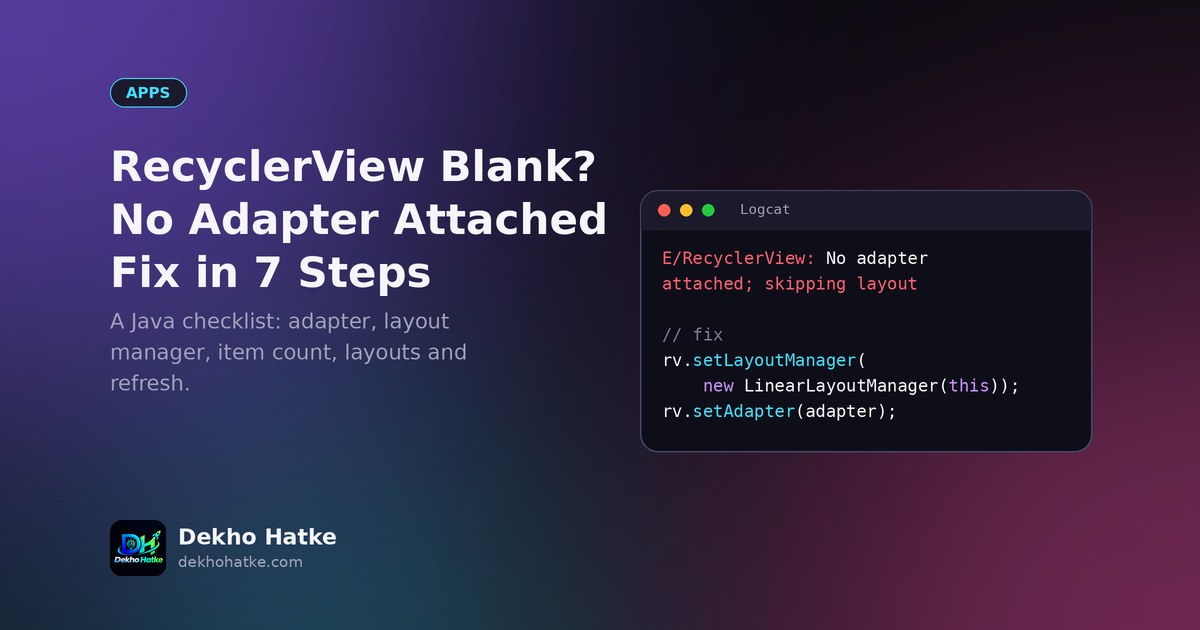
You added a RecyclerView to your Android screen, wrote an adapter, ran the app, and got a white screen. In Logcat there is one yellow line that says E/RecyclerView: No adapter attached; skipping layout, or its twin No layout manager attached; skipping layout. The list is not there, and the app does not crash, which makes the problem harder to chase.
This article gives you a checklist of seven causes, ordered by how often they happen, with Java code for each fix. It also includes a complete working minimal example (layout files, adapter and activity), so you can compare it with your own project line by line. If you want a slower introduction to RecyclerView first, read our step by step RecyclerView tutorial and then return here.
What the warning means
RecyclerView does not draw anything by itself. It needs two helpers. The adapter supplies the data and creates the views for each row. The LayoutManager decides how the rows are placed: in a vertical list, a horizontal list or a grid. During every layout pass RecyclerView checks that both helpers exist. If one is missing, it logs the message and skips drawing. So the log line already tells you what is missing: the adapter or the layout manager.
It is important to know that the message can also appear briefly and harmlessly. If you set the adapter a moment after the view is created, for example after loading data, RecyclerView may log the warning once before you attach the adapter. The problem exists only when the list stays blank. If your list shows correctly, ignore the line, or move setAdapter to the place where the view is created, as shown below.
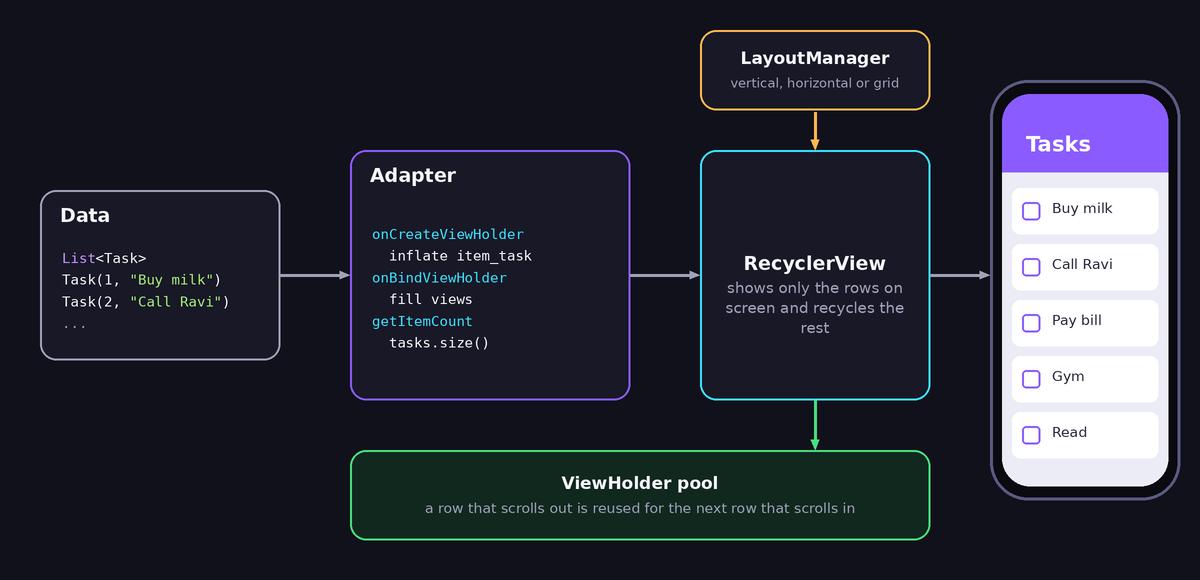
Cause 1: You never called setAdapter
This sounds too simple, but it is the most frequent reason. You created the adapter object, filled it with data and forgot to give it to the RecyclerView. The fix is one line:
RecyclerView rv = findViewById(R.id.recycler);
rv.setLayoutManager(new LinearLayoutManager(this));
rv.setAdapter(adapter);
Check that this code actually runs. A common version of the bug: the call sits inside an if, inside a callback that never fires, or inside a method you never call. Put a Log.d("LIST", "adapter set") line next to it and look for it in Logcat.
Cause 2: No LayoutManager
If the message says "No layout manager attached", set one. You can do it in code, as above, or in the XML layout with the attribute app:layoutManager:
<androidx.recyclerview.widget.RecyclerView
    android:id="@+id/recycler"
    android:layout_width="match_parent"
    android:layout_height="match_parent"
    app:layoutManager="androidx.recyclerview.widget.LinearLayoutManager" />
For a grid use new GridLayoutManager(this, 2) for two columns. For a horizontal list use new LinearLayoutManager(this, LinearLayoutManager.HORIZONTAL, false).
Cause 3: The adapter has zero items
An adapter with no data draws nothing, and no warning appears. Your getItemCount() method decides how many rows exist. These are the typical mistakes:
@Override
public int getItemCount() {
    return 0;           // forgotten placeholder from the generated code
}
Or the list inside the adapter is empty at the moment the view is created, because the real data comes later from the network or a database. Make sure that getItemCount() returns the size of your list, and log the size to check:
@Override
public int getItemCount() {
    return items.size();
}
Auto-generated adapter code in Android Studio often contains return 0;. If you pasted such a stub and never edited it, the list will always be empty.
Cause 4: Data arrives later and the adapter is not told
You loaded data from the internet or from a database in the background. When the data arrives, you replace the list or add to it, but the adapter does not know about it, so the screen is not redrawn. RecyclerView does not watch your list. You must call a notify method after every change, and you must do it on the main thread:
public void setItems(List<String> newItems) {
    items.clear();
    items.addAll(newItems);
    notifyDataSetChanged();
}
And in the activity, when the background work finishes:
runOnUiThread(() -> adapter.setItems(result));Pay attention to this trap: items = newItems; replaces the reference inside the adapter, which can work if you call notifyDataSetChanged() afterwards. But if you replace a list that the adapter does not own, or you modify a list outside and never notify, nothing changes on the screen. notifyDataSetChanged() is simple and fine for small lists. For larger lists use notifyItemInserted(position) or ListAdapter with DiffUtil as described later.
Cause 5: Wrong height of the RecyclerView or of the item layout
Two layout mistakes make a list invisible even when everything in Java is correct.
RecyclerView with wrap_content inside a ScrollView. If you put a RecyclerView inside a ScrollView or NestedScrollView and give it wrap_content, the list may show only one row or none, and scrolling feels strange. RecyclerView already scrolls by itself. Do not place it in a ScrollView unless you have a clear reason. Use a ConstraintLayout, LinearLayout or FrameLayout and give the RecyclerView match_parent or 0dp with constraints.
An item layout with match_parent height. In your row layout file, the root view must not have android:layout_height="match_parent". A row that is as tall as the whole list pushes other rows off the screen and looks like a single giant row or a blank area. Use wrap_content:
<LinearLayout xmlns:android="http://schemas.android.com/apk/res/android"
    android:layout_width="match_parent"
    android:layout_height="wrap_content"
    android:orientation="vertical"
    android:padding="16dp">

    <TextView
        android:id="@+id/title"
        android:layout_width="match_parent"
        android:layout_height="wrap_content"
        android:textSize="18sp" />
</LinearLayout>
Cause 6: Wrong view ids or the wrong layout inflated
If findViewById returns the wrong view or a view from another layout, you may attach the adapter to something that is not on the screen. Check that the id in Java (R.id.recycler) matches the id in the XML of the layout that this activity or fragment really inflates. In a Fragment, find views from the inflated root (view.findViewById) in onViewCreated, and not before the view exists. In onCreateView you inflate and return, and then in onViewCreated you set up the list. A null pointer crash would tell you the id is wrong, but if two layouts share the same id name, the mistake stays silent.
Another version of the same mistake is inflating the wrong item layout in onCreateViewHolder. For example, R.layout.activity_main instead of R.layout.item_row. Look at it carefully.
Cause 7: ListAdapter and submitList pitfalls
If you use ListAdapter with DiffUtil, a new rule applies. submitList compares the new list with the old one, and if you pass the same list object again after modifying it, nothing updates, because the adapter thinks the list did not change. Always submit a new list instance:
List<Item> copy = new ArrayList<>(currentItems);
copy.add(newItem);
adapter.submitList(copy);
Also make sure that areItemsTheSame and areContentsTheSame in your DiffUtil.ItemCallback are implemented properly. If areItemsTheSame always returns true, rows seem not to update, and if both always return false, the list flickers.
A complete minimal example that works
Compare your project with this example. It shows a list of strings and uses only RecyclerView, so you can test it in a new project. First, the dependency in build.gradle of the app module (check the current version number in the official documentation):
dependencies {
    implementation 'androidx.recyclerview:recyclerview:1.3.2'
}
The layout of the activity, activity_main.xml:
<?xml version="1.0" encoding="utf-8"?>
<FrameLayout xmlns:android="http://schemas.android.com/apk/res/android"
    xmlns:app="http://schemas.android.com/apk/res-auto"
    android:layout_width="match_parent"
    android:layout_height="match_parent">

    <androidx.recyclerview.widget.RecyclerView
        android:id="@+id/recycler"
        android:layout_width="match_parent"
        android:layout_height="match_parent"
        android:padding="8dp"
        android:clipToPadding="false" />
</FrameLayout>
The layout of one row, item_row.xml, is the one shown in Cause 5. The adapter:
import android.view.LayoutInflater;
import android.view.View;
import android.view.ViewGroup;
import android.widget.TextView;
import androidx.annotation.NonNull;
import androidx.recyclerview.widget.RecyclerView;
import java.util.ArrayList;
import java.util.List;

public class NameAdapter extends RecyclerView.Adapter<NameAdapter.Holder> {

    private final List<String> items = new ArrayList<>();

    public void setItems(List<String> newItems) {
        items.clear();
        items.addAll(newItems);
        notifyDataSetChanged();
    }

    @NonNull
    @Override
    public Holder onCreateViewHolder(@NonNull ViewGroup parent, int viewType) {
        View v = LayoutInflater.from(parent.getContext())
                .inflate(R.layout.item_row, parent, false);
        return new Holder(v);
    }

    @Override
    public void onBindViewHolder(@NonNull Holder holder, int position) {
        holder.title.setText(items.get(position));
    }

    @Override
    public int getItemCount() {
        return items.size();
    }

    static class Holder extends RecyclerView.ViewHolder {
        final TextView title;

        Holder(@NonNull View itemView) {
            super(itemView);
            title = itemView.findViewById(R.id.title);
        }
    }
}
Note the third argument false in inflate(...). The adapter and RecyclerView attach the row themselves, so passing true would cause a crash. And the activity:
import android.os.Bundle;
import androidx.appcompat.app.AppCompatActivity;
import androidx.recyclerview.widget.LinearLayoutManager;
import androidx.recyclerview.widget.RecyclerView;
import java.util.Arrays;

public class MainActivity extends AppCompatActivity {

    @Override
    protected void onCreate(Bundle savedInstanceState) {
        super.onCreate(savedInstanceState);
        setContentView(R.layout.activity_main);

        RecyclerView rv = findViewById(R.id.recycler);
        rv.setLayoutManager(new LinearLayoutManager(this));

        NameAdapter adapter = new NameAdapter();
        rv.setAdapter(adapter);                       // attach first

        adapter.setItems(Arrays.asList("Asha", "Ravi", "Meena", "Kabir"));  // fill later
    }
}
This order is the most robust pattern: create the adapter, attach it immediately with an empty list, and fill it whenever the data arrives. The RecyclerView never lacks an adapter, and the warning disappears.
Quick debugging checklist
- Read the exact Logcat message: adapter or layout manager?
- Confirm that
setLayoutManagerandsetAdapterare both executed, using a log line. - Log
adapter.getItemCount()after you fill the data. - Call
notifyDataSetChanged()after every data change and do it on the main thread. - Make sure the RecyclerView is not inside a ScrollView with
wrap_content. - Make sure the root of the row layout uses
wrap_contentheight. - In a Fragment, set up the list in
onViewCreated. - With
ListAdapter, pass a new list object tosubmitList.
Sometimes it is helpful to give the RecyclerView a temporary background colour such as android:background="#FFCDD2". If you see the colour, the view has the correct size and the problem is inside the adapter. If you do not see it, the problem is the layout.
Frequently asked questions
Do I have to set the LayoutManager in Java?
No. You can set it in Java or with app:layoutManager in the XML. One of the two is required.
Why does the warning appear and then the list shows anyway?
You attached the adapter slightly after the first layout pass, so RecyclerView logged the warning once. It is harmless. Set the adapter earlier to avoid the message.
Should I use notifyDataSetChanged everywhere?
It is correct but redraws everything, so it can waste work on large lists and removes item animations. For frequent changes use notifyItemInserted, notifyItemChanged or ListAdapter with DiffUtil.
Does this also apply to Kotlin?
Yes. The causes are identical. Only the syntax differs, for example rv.layoutManager = LinearLayoutManager(this) and rv.adapter = adapter.
What if the rows are there but the text is empty?
Then check onBindViewHolder. Make sure you set the text on the correct TextView, and that the item list is not full of empty strings. Also check that the text colour is not the same as the background.
Final thoughts
A blank RecyclerView is rarely a mystery. The list needs an adapter, a layout manager, at least one item and a row layout with a sensible height, and every data change must be announced to the adapter. Work through the checklist from top to bottom and compare with the small working example. Almost every blank list gets fixed in the first three checks.