Cron Job Not Running Your Python Script? Seven Causes and Fixes
Your script works in the terminal but silently does nothing from cron. Fix PATH, working directory, percent signs, time zones and missing logs.
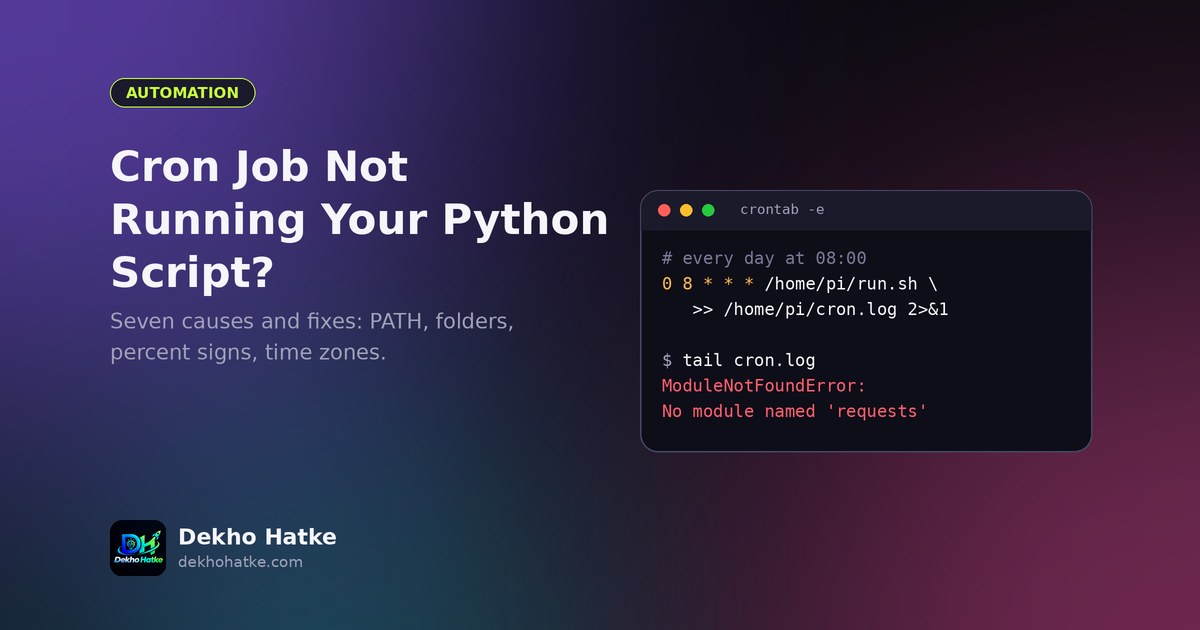
You wrote a Python script and tested it in the terminal. It works every time. You add a line to your crontab, wait for the scheduled minute and nothing happens: no output, no file, no message, no error. Cron is famous for exactly this kind of silence, and it makes many beginners believe that cron is broken.
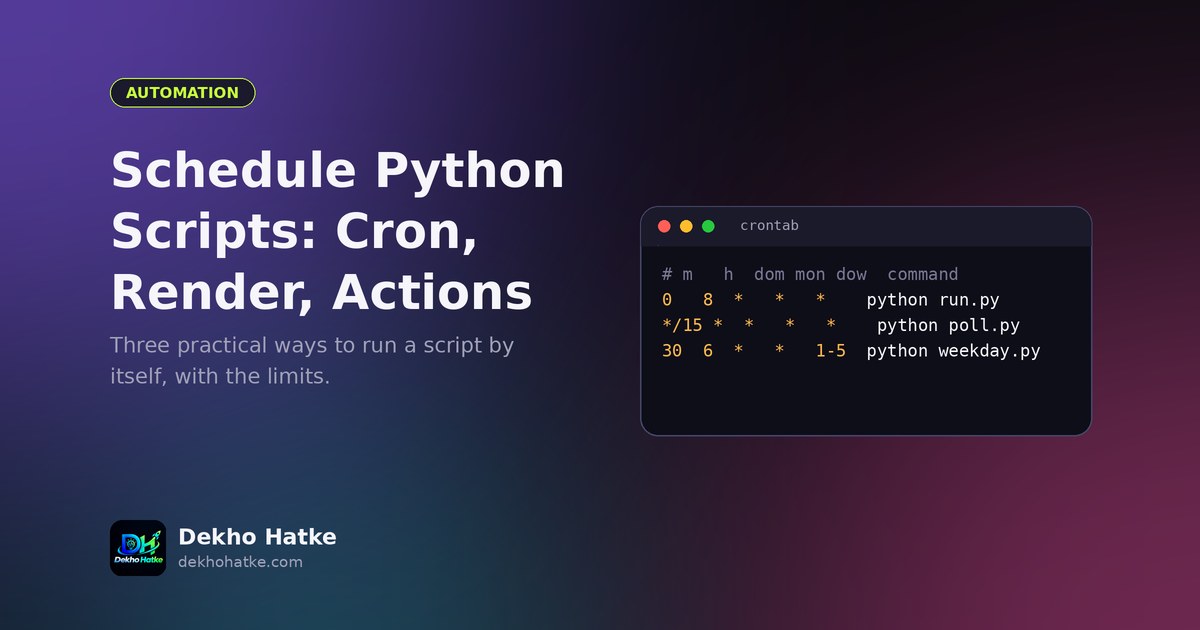
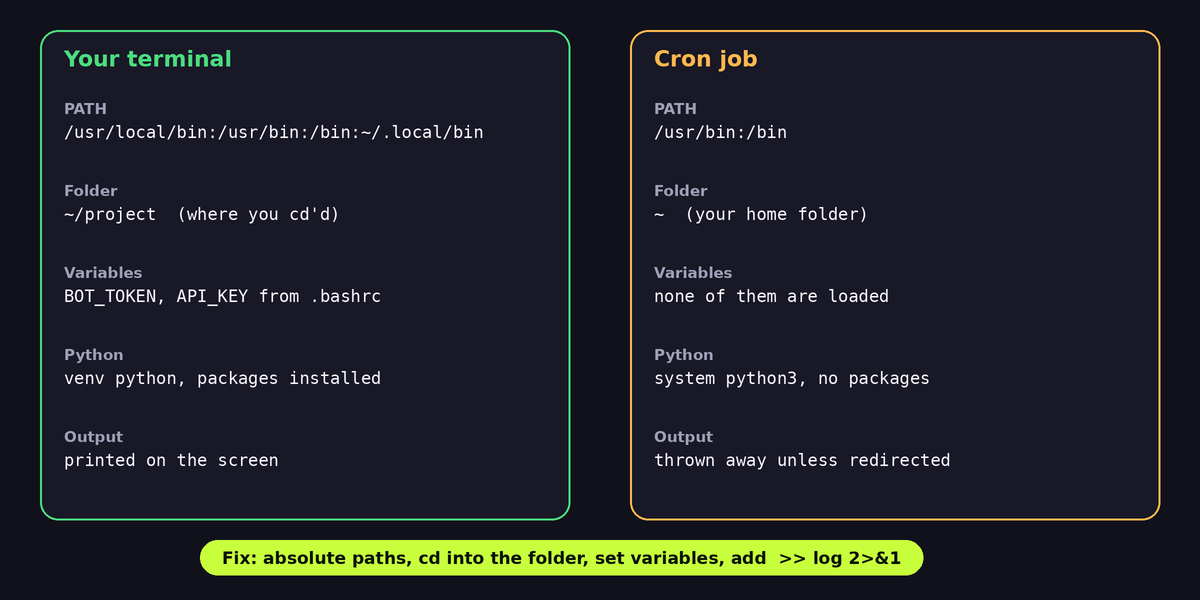
Cron is not broken. It runs your command in a very different environment from your terminal, and it hides all output unless you ask for it. This article lists the seven most common reasons why a cron job that works by hand fails under cron, shows how to make cron tell you what went wrong, and ends with a robust template that you can reuse for every script. The examples are for Linux and macOS and for servers such as a VPS or Raspberry Pi. If you want a complete introduction to scheduling, including a free hosting option, read our guide to scheduling Python scripts with cron and Render as well.
First, make cron talk
Before you change anything, capture the output. By default cron sends output of a job to the local mail of the user, which nobody reads. Redirect both standard output and errors to a log file, in the crontab line itself:
* * * * * /usr/bin/python3 /home/pi/report/run.py >> /home/pi/report/cron.log 2>&1The part >> file appends normal output to the file. The part 2>&1 sends error messages to the same place. Run this every minute for a test and open the log after two minutes. In most cases the log contains a Python traceback or a "command not found" message, and the mystery is over. Remember to change the schedule back after testing.
You can also see whether cron started your job at all. On Debian, Ubuntu and Raspberry Pi OS look in the system log:
grep CRON /var/log/syslog | tail -20On systems that use journald, use journalctl -u cron --since "10 minutes ago" (the service may be called crond on some distributions). A line with CMD (...) proves that cron launched the command, so the problem is inside the command. No line means cron never ran it, which points to syntax, the wrong crontab or a stopped cron service.
Cause 1: Cron uses a tiny PATH
When you type python3 in your terminal, the shell finds the program through the PATH variable, which contains many folders. Cron gives your job a minimal PATH, usually only /usr/bin:/bin. A Python installed somewhere else, for example by pyenv, Homebrew or Anaconda, or a virtual environment, is invisible. Your job may then run a different Python, which does not have your packages, or fail with "command not found".
The fix is to always use absolute paths. Find them in your terminal:
which python3
# example output: /usr/bin/python3
If you use a virtual environment, call the Python inside it. This is the best method because it uses the right packages with no activation step:
* * * * * /home/pi/report/venv/bin/python /home/pi/report/run.py >> /home/pi/report/cron.log 2>&1You do not need source venv/bin/activate in cron. Calling the interpreter of the environment directly has the same effect.
Cause 2: The working directory is different
In your terminal you probably cd into the project folder and run python run.py. Cron starts jobs in the home directory of the user. If your script opens data.csv or config.json with a relative path, it will look in the wrong folder and raise FileNotFoundError.
You have two solutions. The first is to change into the folder in the crontab line:
* * * * * cd /home/pi/report && /home/pi/report/venv/bin/python run.py >> cron.log 2>&1The second, which makes the script independent of how it is started, is to build paths from the location of the script file itself:
from pathlib import Path

BASE = Path(__file__).resolve().parent

config_path = BASE / "config.json"
out_path = BASE / "output" / "report.csv"
out_path.parent.mkdir(exist_ok=True)
Use the second method in every script that you plan to schedule. It removes a whole category of problems.
Cause 3: Environment variables are missing
Your terminal loads files such as .bashrc or .profile, which may export BOT_TOKEN, API_KEY or PYTHONPATH. Cron does not load them. A script that reads os.environ["BOT_TOKEN"] crashes with KeyError under cron, but works when you run it by hand.
Choose one clean solution. The simplest is to define the variables at the top of the crontab, because cron supports NAME=value lines:
BOT_TOKEN=123456:ABC-your-token
TZ=Asia/Kolkata

0 9 * * * /home/pi/report/venv/bin/python /home/pi/report/run.py >> /home/pi/report/cron.log 2>&1
A better solution for secrets is a .env file next to the script, readable only by you (chmod 600 .env), loaded in Python with the python-dotenv package. Pass the path explicitly, because the current directory may differ:
from pathlib import Path
from dotenv import load_dotenv

load_dotenv(Path(__file__).resolve().parent / ".env")
Never put real tokens in a public repository, and never paste them into forum questions.
Cause 4: A percent sign in the command
This one is hard to guess. In a crontab, the character % has a special meaning: it is turned into a newline, and everything after the first one is passed to the command as input. A command such as this fails in a strange way:
0 2 * * * /usr/bin/python3 /home/pi/backup.py --name backup_$(date +%Y-%m-%d)Cron cuts the line at the first %. Escape every percent sign with a backslash:
0 2 * * * /usr/bin/python3 /home/pi/backup.py --name backup_$(date +\%Y-\%m-\%d)A cleaner way is to do the date formatting inside Python, so that the crontab stays simple. This problem affects only crontab lines, not your script files.
Cause 5: The schedule means something else than you think
A cron schedule has five fields: minute, hour, day of month, month, day of week. A few mistakes appear again and again:
* 9 * * *runs every minute during the 9 o'clock hour (60 times), and not once. Write0 9 * * *for once at nine.*/5 * * * *runs every five minutes, but5 * * * *runs once an hour at five past.- Day of week uses 0 or 7 for Sunday, 1 for Monday.
- If you set both day of month and day of week, most cron implementations run the job when either matches, which surprises people.
- The system uses its own time zone. A server in a data centre is usually on UTC. If you want 9:00 in India, either convert it (9:00 IST is 03:30 UTC) or set
TZin the crontab if your cron supports it. Check the server time withdate.
Test your expression in your head with a simple trick: say it aloud as a sentence ("at minute 0 of hour 9 on every day"). If it does not match what you want, fix it. There are many online helpers that translate an expression into words.
Cause 6: Permissions and the file format
Cron runs as your user, so the script and the folders it writes to must be readable and writable by that user. A script that was created by root with sudo may not be writable by you. Check with ls -l. If you call the script directly instead of through Python, it also needs the execute bit (chmod +x run.sh) and a first line such as #!/usr/bin/env python3.
Another pitfall: the crontab file must end with a newline. If the last line has no line ending, some cron versions silently ignore it. Press Enter after the last line when you edit the file.
Also make sure you edited the right crontab. crontab -e edits the table of the current user. Files in /etc/crontab and /etc/cron.d/ have an extra column for the user name between the schedule and the command, and if you forget it, the line fails:
# /etc/cron.d/report
0 9 * * * pi /home/pi/report/venv/bin/python /home/pi/report/run.py
List what is installed with crontab -l. If you use sudo crontab -e, the job runs as root, with different home and permissions.
Cause 7: The cron service is not running, or the machine is asleep
Cron needs a running service. Check with systemctl status cron (or crond). Start it with sudo systemctl enable --now cron. On a laptop or desktop, cron does not run a job while the computer is asleep or off, and it does not run missed jobs afterwards. If you need a catch-up behaviour, use anacron or systemd timers, which can run a missed job after the machine wakes.
On macOS, cron may need permission to access folders such as Documents or Desktop, and Apple recommends launchd for scheduled work. On Windows there is no cron. Use Task Scheduler, and set the "Start in" folder and the full path of python.exe for the same reasons that apply here.
A template that avoids the usual problems
Combine the lessons into a small wrapper script. It sets the folder, loads the environment, writes a log with timestamps and prevents two copies from running at the same time.
#!/usr/bin/env bash
# /home/pi/report/run.sh
cd "$(dirname "$0")" || exit 1

LOG="cron.log"
echo "=== $(date '+%Y-%m-%d %H:%M:%S') start ===" >> "$LOG"

# flock stops a second copy from starting while the first one is still running
/usr/bin/flock -n /tmp/report.lock \
  ./venv/bin/python run.py >> "$LOG" 2>&1

echo "=== exit code $? ===" >> "$LOG"
Make it executable with chmod +x run.sh and call it from the crontab:
0 9 * * * /home/pi/report/run.shThe flock -n command is valuable for jobs that sometimes take longer than their interval. Without it, a slow job can overlap with the next run, and two copies write the same file or send two messages. The exit code line records whether the script succeeded.
Get told when a job fails
A job that fails silently for three weeks is worse than one that fails loudly on day one. Add a try/except at the top level of your script that sends you a message when something goes wrong. A Telegram message is quick to set up, and our guide to a Telegram bot that reports to you shows the code. Also use timeouts on every network call, as explained in the article about Python requests timeouts and retries, because a script that waits forever for a server never finishes and blocks the next run. If you are not sure what to automate first, this article on automating daily tasks with Python has ideas.
Checklist for a cron job that does nothing
- Redirect output to a log file with
>> file 2>&1and read it. - Check
grep CRON /var/log/syslogto see if cron started the command. - Use absolute paths for Python, the script and every file.
- Use the interpreter inside your virtual environment.
- Set the working directory, or build paths from
__file__. - Provide environment variables explicitly.
- Escape every
%in the crontab line. - Verify the schedule fields and the server time zone.
- Check permissions, the final newline and the correct crontab (
crontab -l). - Confirm that the cron service is running and the machine is on.
Frequently asked questions
Why does my script run manually but not from cron?
Because the environment differs: PATH, working directory, environment variables and the user. Cron is not smarter or dumber, it is simply minimal.
How do I test a cron job without waiting?
Run the exact command from the crontab line in a clean shell: env -i /bin/sh -c 'your command here'. The env -i part clears the environment, which approximates cron's minimal setup, so many failures show up immediately.
Can I run a job every 30 seconds with cron?
Cron's smallest step is one minute. For a shorter interval, write a loop with time.sleep in a long-running script managed by systemd, or run two lines where one is delayed with sleep 30.
What happens if my script takes longer than the interval?
Cron starts a new copy anyway. Use flock or a lock file to prevent overlapping runs.
Is cron the right tool for everything?
For simple periodic tasks on one machine, yes. For jobs that must catch up after downtime, retry on failure or run on several servers, look at systemd timers, a task queue or a hosted scheduler.
Final thoughts
Cron failures follow a pattern. The command is fine, but the environment is not the one you tested in. Capture the output first, use absolute paths, set the folder and variables, escape percent signs and check the schedule and time zone. Add a log, a lock and a failure alert, and your scheduled script becomes something you can forget about, which is the whole point of automation.